
VNC vs. HTML5 Web Clients: Choosing the Right Remote Interface for HMI/SCADA
Remote HMI and SCADA access can help an operator check a process from another building, let a technician watch a pump while standing beside it, or allow an integrator to troubleshoot without an immediate trip to the site. Two common interfaces are VNC and an HTML5 web client. Both can work well, but they are built for different jobs.
The most useful question is not which technology is newer. It is what a particular person needs to see, control, and troubleshoot.
Start with the secure access path
Neither VNC nor an HTML5 HMI/SCADA client should be exposed directly to the public Internet. Remote access should begin with a properly secured and maintained VPN or an equivalent controlled remote-access architecture.
The secure connection answers how the user enters the environment. VNC or HTML5 answers what that user can reach after entry. Reaching the VPN should not automatically provide access to every PLC, HMI, switch, server, and engineering workstation. Network segmentation, firewall policy, named user permissions, logging, and time-limited vendor access should narrow the path to the work being performed.
Two interfaces, two operating models
VNC: share the actual workstation
VNC typically shows and controls the session already running on an HMI computer. The local operator and remote specialist may see the same screen, cursor, values, and screen changes.
This shared view is valuable when a technician or integrator needs to observe a problem, inspect HMI diagnostics, check communications, restart an application, or investigate the workstation itself.
HTML5: use the HMI through a browser
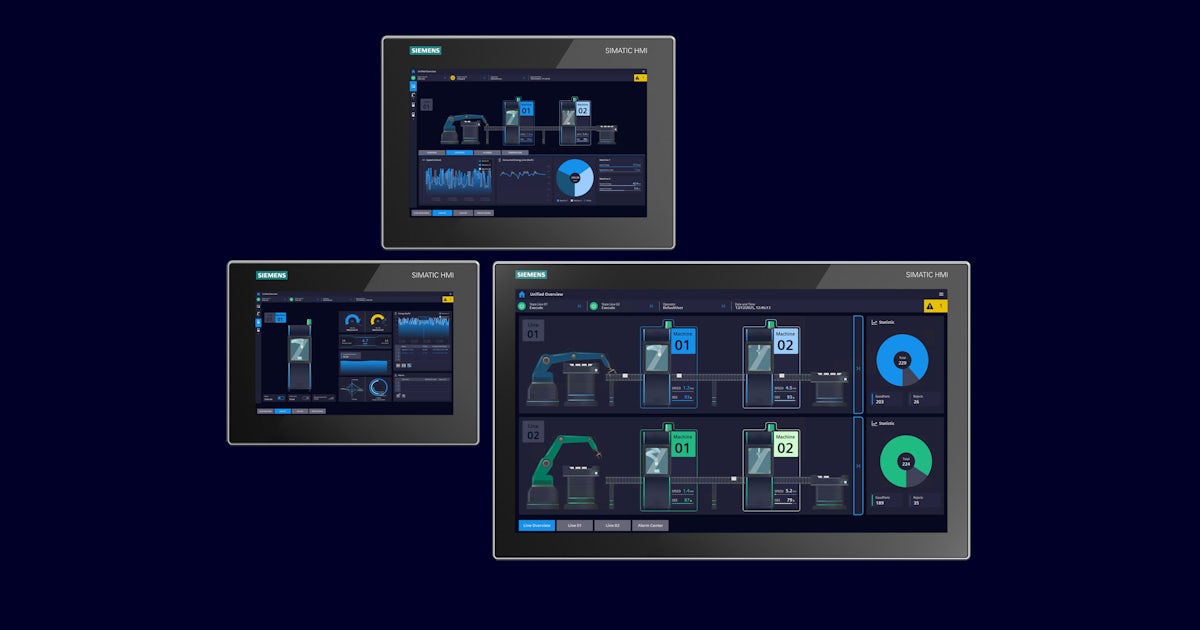
An HTML5 client presents process screens, alarms, trends, setpoints, history, and approved controls in a browser. The user can work with the HMI application without necessarily receiving access to the computer underneath it.
This separation is useful when an operator needs process visibility or approved control from a laptop, tablet, or phone, but does not need the Windows desktop or engineering tools.
Match the interface to the task
A person checking one value beside a machine may benefit from a focused browser session. A controls specialist diagnosing a workstation issue may need the actual machine session. The role and task should drive the interface choice.
Shared context or independent sessions?
A shared VNC session can make troubleshooting easier because everyone sees the same screen and actions. An operator can reproduce a problem while an integrator watches the same values, changes screens, and explains the next check. The shared session reduces confusion about which display is open or what changed.
Independent HTML5 sessions provide flexibility, but they also require a control-authority plan. Two authorized users may look at the same equipment from different locations without seeing each other's actions. If both can change a setpoint or place equipment in manual, independent access can become an operational coordination problem.
Questions for multiple users
- Who has control authority?
- Can two users control the same equipment at once?
- Which roles should be view-only?
- Can authority be transferred clearly?
- Can users see when remote operation is active?
- Are commands and changes logged by user?
When shared viewing helps
- Reproducing an intermittent operating issue
- Coordinating an operator and integrator
- Reviewing HMI diagnostics
- Confirming the same alarm or process value
- Guiding a local technician through checks
Walk-around access and screen design

Browser access can be convenient when a technician is priming a pump and needs to watch discharge pressure, or when an operator wants to verify a signal while working away from the control room.
However, opening a control-room display on a phone does not make it suitable for phone operation. Tiny buttons, dense graphics, alarm windows, and small entry fields can create usability and safety concerns. If mobile operation is expected, design and test the HMI screens for the intended device and operating conditions.
Practical comparison
| Decision area | VNC | HTML5 web client |
|---|---|---|
| What the user reaches | The actual HMI workstation session | The HMI/SCADA application through a browser |
| Strong fit | Troubleshooting, collaboration, legacy access, workstation-level tasks | Routine process viewing, approved operation, walk-around access, role-focused screens |
| Session behavior | Often shared, so participants see the same actions | Often independent, which supports concurrency but needs authority rules |
| Device experience | Mirrors the workstation display and may be awkward on small screens | Can support multiple device types when screens are designed responsively |
| Access scope | May expose the desktop and more workstation capability than an operator needs | Can keep the user inside the application and approved functions |
| Licensing | May reuse an existing runtime session, depending on product terms | May require web, named-user, concurrent-user, runtime, server, or mobile licenses |
Licensing and growth can change the answer
Check the exact platform license before selecting an architecture. Browser access may be included, or it may require licenses for web clients, named or concurrent users, remote sessions, server features, additional runtimes, or mobile access. VNC may view an already licensed runtime, but that does not make it universally less expensive or permitted in every configuration.
Price the expected future state as well as the first connection. One browser session today can become operators, supervisors, maintenance technicians, engineers, and vendors tomorrow. Ask what the tenth connection requires, not only what the first costs.
Legacy systems still have a place
Some older HMI panels and workstations have no practical HTML5 option. Replacing a reliable system only to add browser access may not be justified. Controlled VNC access can extend supportability when the risk is assessed, the path is secured, and the workstation remains appropriately maintained and isolated.
This is not simply old technology versus new technology. It is a lifecycle and application decision.
Vendor access needs a beginning and an end
Third-party access should be enabled for a defined support task, visible to the responsible facility personnel, limited to the relevant system, and disabled when the work is complete. Permanent unrestricted accounts create avoidable exposure and make it harder to know who can still enter the environment.
Security also has to be workable. Strong authentication and access controls belong at the remote boundary, but the approved workflow should remain usable enough that operators and technicians do not feel pushed toward unsafe workarounds.
Remote access must not become required for local control
Every remote communication path will eventually be unavailable. A VPN, Internet circuit, radio, cellular link, or server may fail or require maintenance. The PLC should continue its local control strategy, and the local HMI should remain available where one is installed. Losing remote visibility should not automatically stop the process.
Sometimes the right answer is both
Operators and supervisors
VPN or controlled gateway to an HTML5 client designed for process viewing and approved operation. Use role-based permissions, view-only access where appropriate, and clear control authority.
Maintenance and engineering
VPN or controlled gateway to time-limited VNC access when technical personnel need the actual workstation for diagnosis or collaboration.
RDP may also be useful in centralized SCADA and engineering environments where users need separate Windows sessions. It solves a somewhat different problem from sharing an existing HMI session or opening a browser client, so evaluate it as a separate architecture choice.
A simple field checklist
- Who is connecting? Operator, supervisor, maintenance technician, engineer, integrator, or vendor.
- What must that person do? View the process, operate equipment, troubleshoot an application, or work on the HMI computer.
- Do they need the application or the workstation? This often separates HTML5 from VNC quickly.
- Should the session be shared or independent? Consider collaboration and concurrent control.
- How is control authority assigned and shown? Define view-only roles, command logging, and transfer rules.
- How many users are expected? Verify current and future licensing.
- What is the smallest safe network scope? Limit routes, protocols, systems, and time windows.
- What happens when communications fail? Preserve local control and a clear operating response.
How can BEA help?
BEA can help assess the operating roles, HMI/SCADA platform, network boundaries, licensing, screen design, support workflow, and local fallback requirements before remote access is implemented or expanded. The goal is not the greatest possible reach. It is controlled, practical access that supports the person and task without weakening plant operation.
For independent remote-access security guidance, review CISA's Industrial Control Systems recommended practices. Product-specific capabilities, license terms, and security requirements should also be confirmed with the applicable HMI/SCADA manufacturer.